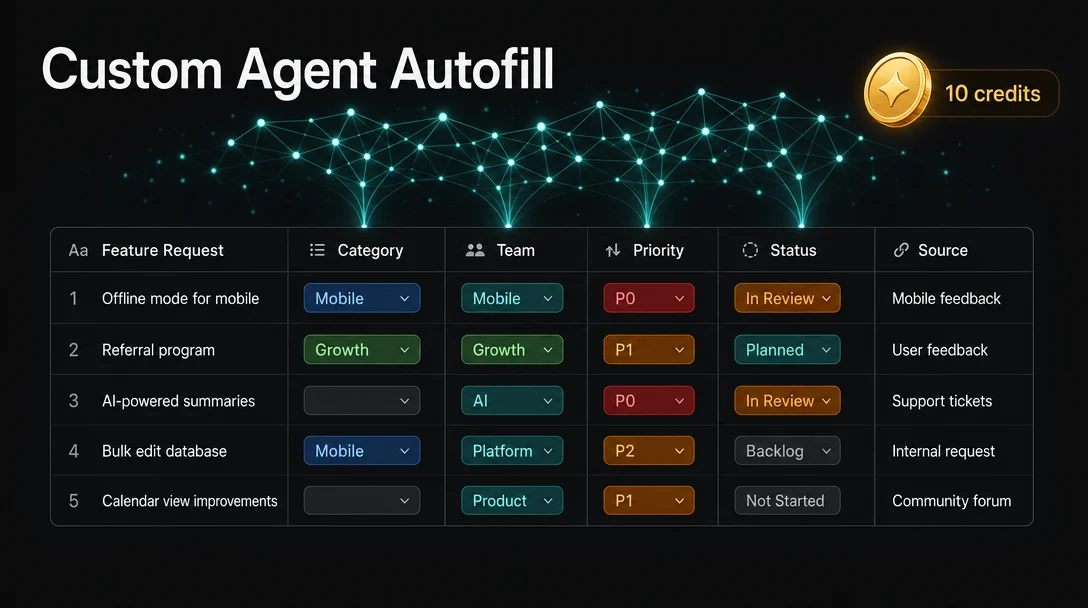
Enrich your Notion databases with cross-workspace context using Custom Agent Autofill
Custom Agent Autofill is the credits-powered upgrade to Basic Autofill: it can pull context from other databases in your workspace and from the web before writing properties — Basic Autofill can't. Covers the two-mode difference, the $10/1,000 credits cost model with PM math (200 runs/month = $10–$60), a step-by-step competitor-tracking enrichment workflow, multi-property fill pattern, agent chaining via property-edited triggers, and 6 gotchas including the global web-toggle trap, independent permission scope risks, and workspace-shared credit exhaustion.

Research Brief
Required plan: Business or Enterprise. Custom Agent Autofill runs on Notion's Custom Agent infrastructure — Free and Plus plans have no access. 1
Basic Autofill (covered May 25) is fast and free, but its context is the page in front of it. Drop a feature request into your tracker and Basic Autofill can summarize, tag, and classify — but only from what that single row contains. It cannot cross the aisle to your Competitor Tracking database to check whether a rival already shipped this, or pull the current-sprint owner from your Roadmap. 2
Custom Agent Autofill removes that boundary. When you need to fill properties using context that lives elsewhere in your workspace — or on the open web — this is the upgrade.
Prerequisites
| Requirement | Detail |
|---|---|
| Notion plan | Business or Enterprise |
| Feature gate | Custom Agents must be enabled (workspace admin: Settings → AI → Agents) |
| Credits | Notion Credits at $10/1,000 — purchased by workspace admin under Settings → Access & billing |
| Databases | The database you want to autofill, plus any cross-reference databases you want the agent to read |
| Permissions | The agent must be explicitly granted access to every database it needs to read or write |
How Custom Agent Autofill differs from Basic Autofill
The two modes are configured at the property level — when you add an AI Autofill property to a database, Notion asks whether you want Basic or Custom Agent mode. 2 The differences go deeper than the toggle:

| Dimension | Basic Autofill | Custom Agent Autofill |
|---|---|---|
| Context source | Current page content only | Workspace pages/databases + optional web search |
| Reasoning | Standard AI | Advanced — supports Auto, Claude Sonnet, Claude Opus, GPT-5.2 1 |
| Cost | Free on Business/Enterprise 4 | Notion Credits ($10/1,000) per run 4 |
| Custom instructions | None — system-controlled | Fully custom prompt per agent 5 |
| Permission scope | Page-level | Independent — the agent uses its own granted access, not the triggering user's 6 |
| Multi-property update | One property per config | One agent can fill multiple properties in a single run 5 |
"Autofill has two options: Basic and Custom Agent. Basic Autofill is included on Business and Enterprise plans, and does not use Notion credits. Custom Agent Autofill uses Notion credits because it runs with Custom Agent capabilities (like using richer context and more advanced reasoning)." 4
The credits cost model — concrete PM math
Credits are workspace-shared, non-rolling, and reset monthly on your billing date. If any agent exhausts the pool before reset, all Custom Agents pause automatically until an admin tops up or the month rolls over. 4
Notion doesn't publish Autofill-specific cost benchmarks, but its per-run estimates for comparable agent types give a working range: 4
| Autofill complexity | Comparable agent type | Estimated cost/run | 200 runs/month |
|---|---|---|---|
| Simple (tag, summarize, single property) | Task routing agent | $0.05–$0.15 | $10–$30 |
| Complex (multi-property + web search) | Status update / daily brief agent | $0.08–$0.30 | $16–$60 |
A PM processing 50 feature requests per week — 200 runs/month — lands at one or two $10 credit packs for simple fills with the Auto model. Enabling web search on every run, or switching to Claude Opus, pushes the upper bound toward $60.
Notion's own take: "For most teams, the ROI will be an absolute no-brainer. If the agent does not do the work, a human has to — and humans are significantly more expensive than $10 per 1,000 credits." 3
Three levers that control your burn rate:
- Model: Auto (Notion's adaptive routing) is the default and cheapest path for most fills. Claude Opus is better for complex multi-step reasoning but costs more. 4
- Scope: Workspace search reads more content per run than page-only fills. Disable it when the fill needs nothing outside the current page.
- Per-agent credit limits: Set a cap in the agent's settings so a single runaway agent can't drain the shared pool.
Concrete workflow: enriching a competitor tracking database
Setup scenario: Your team maintains a Competitor Tracking database with columns for
Company, Feature Area, Ship Date, Our Roadmap Match (Relation → Roadmap DB), PM Assessment (Text), and Priority (Select). When a new competitor item is added, you want the agent to:- Search your Roadmap database for matching items.
- Look up the competitor's announcement on the web.
- Fill
Our Roadmap Match,PM Assessment, andPriorityin one pass.
Step 1 — create the agent
Navigate to the sidebar → Agents → +. Choose "Start from scratch." Name it
Competitor Enrichment — Autofill.Step 2 — set the trigger
Under Triggers, select Page added to a database → choose your Competitor Tracking database. This is the most reliable trigger for Autofill; "on edit" triggers can lag 30 minutes or more. 7
Step 3 — grant access
Under Tools and Access, add:
- Competitor Tracking database — Can edit (to write properties)
- Roadmap database — Can view (to read for matching)
- Enable Web access toggle
The agent uses its own permissions, not yours. If Roadmap is not explicitly added here, the agent cannot see it — and will silently fill nothing rather than throw an error. 6
Step 4 — write the instructions
Precise instructions are the single most critical factor in Autofill quality. Matthias Frank puts it plainly: "The single biggest reason AI implementations fail: vague prompts with hidden assumptions." 3
You are enriching a new row in the Competitor Tracking database.

When a new page is added:

1. Search the Roadmap database for items matching the company name and feature area.
   - If a match exists: fill "Our Roadmap Match" with the relation to that roadmap item.
   - If no match: leave "Our Roadmap Match" empty.

2. Search the web for the competitor's announcement for this feature. Use the company
   name and feature description as your query.
   - Fill "PM Assessment" with a 2–3 sentence summary: what they shipped, why it matters
     relative to our roadmap, and one differentiation angle.
   - Keep the tone factual. Do not use opinion words like "impressive" or "concerning."

3. Set "Priority" based on this logic:
   - "P0" if Our Roadmap Match is set AND the competitor has already shipped.
   - "P1" if Our Roadmap Match is set but competitor is pre-launch.
   - "P2" if no roadmap match exists.
   - "P3" if the feature area is outside our current roadmap entirely.

Call out which properties you are filling. Example: "Filling: Our Roadmap Match, PM
Assessment, Priority."
Notion's official best practice: "Be clear about format and destination — call out which properties or sections should be filled in." 5
Step 5 — select the model
Set to Auto for this workflow. The conditional priority logic is straightforward enough that Auto handles it reliably. Reserve Claude Opus for cases where the agent needs to synthesize conflicting or ambiguous multi-source content. 3
Step 6 — test with one row before sharing
Add one test competitor entry manually. Watch the agent's Activity log to confirm each fill step. Check that
Our Roadmap Match resolves to the correct relation UUID — this is where most first-run failures surface.Loading content card…
Multi-property update pattern
A single Custom Agent Autofill run can fill as many properties as you specify in the instructions. The official example from Notion's best practices: 5
Title = first sentence of message
Requester = matched person
Team = looked-up team
Status = "New"
Priority = "Unset"
Each property needs an explicit rule. Vague instructions like "fill Priority based on importance" produce inconsistent results. Rules need to be deterministic enough that a human could follow them mechanically.
What property types Autofill can write: Standard types including Text, Select, Multi-select, Number, Date, Person, and Relation. AI-generated column types (the native "AI Summary" or "AI Autofill" property types) cannot be written by automation or by another agent. If you need to chain outputs, use standard text or select columns as the write target. 7
Chaining agents: the database trigger bridge
Agents cannot call other agents directly. There is no
@mention-another-agent in the instructions. 3 The workaround is to route signals through database property changes:Agent A fills
Priority = "P0" → "Property edited" automation triggers → Agent B fires (e.g., posts a Slack alert or creates a linked task in your Sprint DB).Agent A (Autofill on page create)
└─ fills: Priority, Team, Roadmap Match
│
▼ "Property edited" automation
│ Trigger: Priority is set to "P0"
│ Action: (triggers Agent B or Notion automation action)
▼
Agent B (Slack notify / task creation)One hard limit: database automations cannot be triggered by other automations. 7 If Agent A's property edit would need to cascade through two automation layers, the second layer won't fire. Structure your chain so each agent writes to a property that a human-visible trigger (not an automation-written field) can watch.
Gotchas
Loading content card…
1. Web search is a global toggle, not a per-fill instruction. Once web access is on, the agent decides when to search the web — you cannot write
"only use web search for step 2" in your instructions and have that be respected. If you want strict internal-only fills for some properties, build a separate agent with web access off. 12. The agent's permissions are independent of yours. A teammate who triggers the agent (by adding a row) gets the agent's fills even if they personally have no access to the Roadmap database. Useful for cross-team enrichment — but audit what you're granting before sharing the agent widely. As Notion's permission docs state: "A Custom Agent responds using the agent's own access, not the permissions of the person who triggered it." 6
3. Credits exhaustion pauses all agents, not just the expensive one. The pool is workspace-shared. If another team's Daily Brief agent burns through the month's credits before your feature-request Autofill runs, your Autofill silently skips those rows. Set per-agent credit limits for every agent in the workspace — this takes 30 seconds and prevents one runaway agent from blocking others. 4
4. Multi-property atomicity is undocumented. If the agent successfully fills
Team and Roadmap Match but fails on Priority, Notion's docs don't specify whether the partial write is committed or rolled back. The Activity log records the failure, but the partially filled row stays in that state. Build your instructions so each property fill is independently useful, not dependent on all-or-nothing completion.5. Auto-detect for access can miss pages. When you enable an agent and let it auto-detect which pages it needs, it sometimes misses databases. Always cross-check the Tools and Access list manually before the first live run. Matthias Frank: "Remember that Notion Custom Agents are still very early in their product cycle, so sometimes it might not properly detect all pages. Always double-check that you've given it access to everything it needs." 3
6. The "on edit" trigger is unreliable for Autofill. Confirmed from prior research: property-edited triggers on database automations can delay 30 minutes to several hours, or not fire at all. For Autofill,
Page added to a database is the reliable trigger. If you need an on-edit fill (e.g., re-enrich when Status changes), use a Notion Automation's "Property edited" trigger pointing to a Custom Agent, not a database automation. 7Cost optimization checklist
- Use Auto model unless the task genuinely requires complex multi-step reasoning.
- One agent, one job. "The one-agent-one-job principle is not just good practice. It is now cost-effective practice." 3 Lean, single-purpose agents take fewer steps and cost less per run.
- Set per-agent credit caps at Settings → Access & billing → Notion credits → per-agent limit.
- Use the Insights dashboard (same location) to identify which agents consume the most credits. Expensive runs often mean the agent is reading too broadly — narrow its access scope.
- Trigger on
Page added to database, not on every edit. Editing a row 5 times before the status is final shouldn't burn 5 runs.
Cover image: AI-generated illustration
References
- 1Notion Help Center: Custom Agents
- 2Notion Help Center: Notion AI for databases
- 3Matthias Frank: Notion Custom Agents
- 4Notion Help Center: Buy & track Notion credits
- 5Notion Help Center: Best practices for Custom Agents
- 6Notion Help Center: Custom Agents sharing and permissions
- 7Notion Help Center: Database automations
Add more perspectives or context around this Drop.